In this chapter we’ll look at how to convert sub-volumes of Zarr images to other file formats. This allows you extract sub-volumes of large images into a different file format, perform some analysis/processing and then copy the results back in-place to the original Zarr image.
Converting Zarr sub-volumes to TIFF
To start with we’ll load our heart sample dataset as a Zarr array and then extract a smaller volume as a NumPy array.
import numpy as np
import zarr

from data_helpers import load_heart_data, plot_slice

zarr_array_on_disk = load_heart_data(array_type="zarr")
print(f"Zarr array store: {zarr_array_on_disk.store}")
print(f"Zarr array shape: {zarr_array_on_disk.shape}")
print(f"Zarr array dtype: {zarr_array_on_disk.dtype}")
print(f"Zarr array chunks: {zarr_array_on_disk.chunks}")
print(f"Zarr array size: {(zarr_array_on_disk.nbytes / 1e6):.3f} MB")Zarr array store: file:///home/docs/checkouts/readthedocs.org/user_builds/ome-zarr-book/checkouts/latest/book/data/hoa_heart.zarr
Zarr array shape: (120, 120, 139)
Zarr array dtype: uint8
Zarr array chunks: (64, 64, 64)
Zarr array size: 2.002 MB
The output above shows that we have loaded a Zarr array where the data lives on disk. This lazy loading approach is one of the key advantages of Zarr - you can work with arrays much larger than your available RAM.
In this chapter we don’t want to modify the copy of the data stored on disk (because it is used in other chapters of this book), so we’ll create a copy of the array in memory. For large arrays this might not be possible, so you may need to create a new array with the data stored on disk instead.
import zarr.storage

memory_store = zarr.storage.MemoryStore()
# Create an empty array like the original array
zarr_array = zarr.empty_like(zarr_array_on_disk, store=memory_store, zarr_format=2)
# Copy all the data from the original array
zarr_array[:] = zarr_array_on_disk[:]

print(f"New Zarr array store: {zarr_array.store}");
New Zarr array store: memory://129504241425792
Now let’s extract a small sub-volume from the Zarr array. This operation will only load the requested slice into memory as a NumPy array, leaving the rest of the data untouched:
subvolume_slice = (
    slice(30, 80),
    slice(50, 60),
    slice(40, 47),
)
numpy_array = zarr_array[subvolume_slice]

print(f"Extracted sub-volume array shape: {numpy_array.shape}")
print(f"Extracted array dtype: {numpy_array.dtype}")
print(f"Extracted sub-volume size: {(numpy_array.nbytes / 1e6):.3f} MB")
Extracted sub-volume array shape: (50, 10, 7)
Extracted array dtype: uint8
Extracted sub-volume size: 0.004 MB
The next step is to write this NumPy array to a TIFF file.
We would use the imageio library to do this, but for simplicity here we won’t actually write the file to disk.
# import imageio.v3 as iio
# iio.imwrite("image_file.tiff", np_array, plugin='tifffile')
At this point some processing can be done on the sub-volume TIFF files.
For the purposes of this chapter we’ll fake some processing by creating a sub-array of the same shape as the original sub-volume, but filled with zeros.
The imageio library can be used to then read the TIFF file back into a NumPy array,
# Loading the result back into a NumPy array if processed with another tool:
# sub_array = iio.imread("image_file.tiff", plugin='tifffile')
# This simulates a processed sub-volume, where all the data values have been set to zero
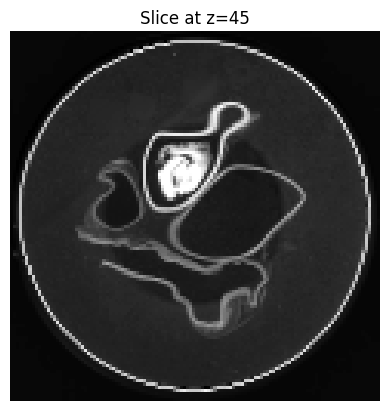
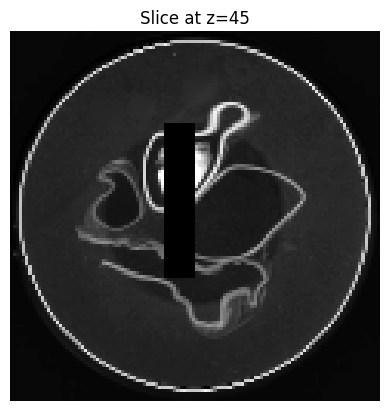
sub_array = zarr.zeros_like(numpy_array)which can then be copied back in place to the original Zarr array. The following two plots show the original data (still stored on disk), and the modified data (stored in memory). In the modified data you can see that a rectangle has been edited and all values set to zero in that region.
zarr_array[subvolume_slice] = sub_array[:]from data_helpers import plot_slice
plot_slice(zarr_array_on_disk, z_idx=45)
plot_slice(zarr_array, z_idx=45)